Mac How-to
Overview
Frequently used keyboard shortcuts etc in Windows & Mac OSX
Things we cannot do in Windows
Equivalent Applications/Terminologies
Bridging Windows & MacOS file system (cross-platform file/data transfer)
Personal Problems with Mac
Get Acquainted with Mac (Surviving w/o Spotlight)
Usability. Frequently used keyboard shortcuts etc in Windows & Mac OSX
| No | Action/System | Windows | Mac OSX | Remarks |
| 1 | (Terminologies) | Windows explorer WE's Address bar |
Finder F's PathBar |
|
| 2 | Switching to Japanese/English | Japanese IME. Shortcut: Alt Shift, or (if not responding) Alt TIlde |
There are dedicated buttons for English & Japanese mode. | Related links: Wikipedia (Alt Shift) Microsoft Answer (Alt Tilde) |
| 3 | Right click | (1) Touchpad: bottom right (2) keyboard: menu button (beside arrow or right side Ctrl button) |
(1) Touchpad: Double finger tap (2) keyboard: need to enable/set up first After setup: Ctrl 5 |
There's no 'menu' button on Mac keyboard. Need to explore more later: link |
| 4 | Scroll bar: up/down | Normal scroll | Often hidden | Default Mac scroll bar is difficult to navigate. |
| 5 | Switch window (1) Switch window (2) Show all opened windows |
(1) Alt Tab Tab Tab; Alt Shift Tab Tab Tab (2) Win Tab |
(1) Cmd Tab –> cannot be used for the same application ※ See more details below this table (2) Shift + 3 fingers swap up |
(1) e.g., if opening 2 browsers (Safari) on separated windows, cannot switch using Cmd Tab. Need to explore more later: link |
| 6 | Select address bar Search |
Ctrl L Ctrl F |
Cmd L Cmd F |
|
| 7 | Go up one level | (1) mouse: button beside address bar (2) keyboard: Alt UpArrow |
(1) mouse: ? (2) Cmd UpArrow |
link |
| 8 | (1) Go inside a folder (2) Open a file |
Enter | (1) Cmd DownArrow (2) Cmd O |
link |
| 9 | Go back (undo to the previous location) | Backspace | ? | |
| 10 | Open windows explorer/finder | Win E | Cmd Spacebar: Spotlight Search + type "Finder" |
|
| 11 | Lock screen | Win L | ? | |
| 12 | Open Desktop | Win D | ? | |
| 13 | Windows/Apple menu | Win | ? | |
| 14 | (1) Quick search (2) Run an application |
(1) Win S (2) Win R: Run |
Cmd Spacebar: Spotlight Search | Spotlight in Mac: intuitive, easier to remember |
| 15 | Open new window Open new tab Open incognito tab Restore tab |
Ctrl N Ctrl T Ctrl shift N Ctrl shift T |
Cmd N Cmd T ? ? |
|
| 16 | Close window | Ctrl W | Cmd W | link |
| 17 | Minimize window | Alt spacebar N | ? | |
| 18 | Take screenshot (1) full screenshot (2) a portion/part of the screen (3) save as a file (4) save as clipboard |
(1) PrintScreen (2) Win Shift S (Snip & Sketch) (3) – (4) by default |
(1) Shift Cmd 3 (2) Shift Cmd 4 (3) by default (4) press & hold Ctrl when selecting part of screen |
It took effort to memorize how to screen capture. |
| 19 | Delete text on the right side of the cursor | Delete | Fn Backspace | There is no delete button on the Mac keyboard |
| 20 | Delete a file | Delete | Cmd+Backspace | There is no delete button on the Mac keyboard. link |
| 21 | Paste plain text | (1) mouse: right click > paste plain text (2) keyboard: depend on the window Ctrl V Ctrl Shift V (Chrome) |
(1) mouse: ? (2) Cmd Opt Shift V |
4 keys on the keyboard 😀 What a shortcut |
| 22 | Cut & paste text | Ctrl X, Ctrl V | Cmd X, Cmd V | |
| 23 | Cut & paste a file | Ctrl X, Ctrl V | Cmd C, Opt Cmd V | link |
| 24 | Cut & paste files with same names (but actually different content) | Automatically offer to "overwrite" or "save as different name" | When the Skip/Stop dialog comes up, hold Option and the Skip button will change to "Keep Both" | link |
| 25 | Image format (especially from iPhone) | JPG | HEIC | |
| 26 | Activity Monitor > CPU Usage |
Switching window for same application !!!
Case example:
If opening browsers (e.g., Safari) on 5 different windows, the default shortcut for switching window (Cmd Tab) cannot be used.
This "Cmd Tab" shortcut is only for switching windows among different applications.
Additional note: cannot print screen on Mac when holding Cmd Tab … *sigh*
The default shortcut to switch between the same application (e.g., browser) is:
Cmd tilde;
Cmd shift tilde
HOWEVER, this default shortcut doesn't work on My Mac even though I already checked the settings (System Preferences > Keyboard > Shortcut). Perhaps conflicting keyboard?
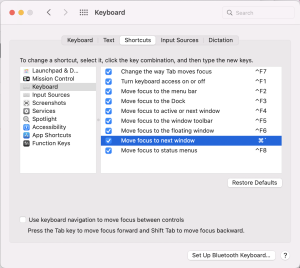
Keyboard differences (link)
- On Mac:
- No Windows button.
There is a Cmd (command) button with this 'looped square' symbol ⌘ , previously named: Apple key. - !!! Be careful not to confuse Cmd with Ctrl key.
Be aware that- There are 2 keys with similar name: Control & Command, both are started with "Co".
- Most Windows Ctrl shortcut is executed as Cmd (not Ctrl) on Mac.
- Maybe it's better to use the word "Loop" instead of "Command", e.g., "Loop tab"?
- The shortcuts on the "System Preferences > Keyboard" are described using these symbols:
(link: modifier keys symbol on Mac)- ⌃ : Ctrl : Control
- ⌘ : Cmd : Command : Looped square : Apple key
- Fn :
 : Function : Globe
 - ⌥ : Option : Alt
- ⇧ : Shift
- ⇪ : Caps Lock
- ⇥ : Tab
- Many modifier keys on Mac keyboard are only written by symbol.
e.g., ⇥ instead of Tab, ⇧ instead of Shift, ⇪ instead of Caps Lock
(recommended link: making sense of Mac keyboard symbols) - No Del (delete) button.
- No 'menu' button.
- No Windows button.
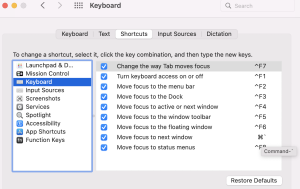
Tips to navigate the shortcut window (System Preferences > Keyboard)
Try to hover above the shortcut text symbol for around 1 second to display tooltip.
E.g., hover above the '⌘`' for around 1 second, then a tooltip "Command-`" will appear.
Unfortunately, you will still need to know what the symbol tilde (`) is.
Other hacks to try:
https://www.cnet.com/tech/computing/15-tips-to-better-organize-and-find-files-on-your-mac/
https://www.cnet.com/tech/computing/get-acquainted-with-these-mac-keyboard-shortcuts-you-wont-regret-it/
Things we cannot do in Windows
- Airdrop to transfer files conveniently
- Mac sleep mode: no need to shut down, just close the lid
– quick & 'instant' resume from sleep
– no waiting for reboot, no relaunching all opened apps
– superior power management: standby battery life is very long, can be days, a week or even a month
https://www.quora.com/Is-it-better-to-let-a-MacBook-sleep-or-should-you-shut-it-down-every-night - Create a new folder when selecting some files
Right-click> New folder with Selection (e.g., 15 items) - Add searchable comments to any file (without changing the file name)
https://eshop.macsales.com/blog/47566-quick-tip-adding-searchable-comments-to-any-file/#:~:text=Right%20click%20on%20a%20file,type%20or%20paste%20any%20text.
Mouse/touchpad: right click > Get Info
Keyboard: Cmd I - Finder List View options: View comments
https://www.lifewire.com/use-finders-list-view-option-2260726
Equivalent Applications/Terminologies
| No | Purpose | Windows | Mac OSX |
| 1 | Presentation application | Ms Power Point | Keynote |
| 2 | Word processor | Ms Word | Pages |
| 3 | Plain text processor | Notepad | Moped |
| 4 | Browser | Ms Edge Chrome |
Safari Chrome |
| 5 | Simple picture editor | Ms Paint (Paintbrush) | ? |
| 6 | File explorer | Windows explorer | Finder |
| 7 | Settings | Control Panel | System Preferences |
| 8 | Trash folder | Recycle Bin | Finder > Go > Go to Folder > type "~/.Trash" |
Get Acquainted with Mac (Surviving w/o Spotlight)
- "Control Panel" : System Preferences
Apple icon (top-left corner of the screen) > System Preferences
E.g., setting up new printer (click 'Printers & Scanners', +)
E.g., always showing scrollbar (General > Show scroll bars: Always) - "Recycle Bin" (Trash folder) : ~/.Trash
Finder > Go > Go to Folder … > type "~/.Trash"
Bridging Windows & MacOS file system (cross-platform file/data transfer) through Wi-Fi
ACCESS WIN'S FILES FROM MAC
(tried successfully on 2024.03.08)
Setup on Windows
- Share a specific folder to be access from Mac
Open Windows Explorer (Win + E)
Right click on that folder, click Properties > (Tab) Sharing > Advanced Sharing > Check the checkbox □ Share this folder > Click "Permissions" button > setup Permission (Allow/Deny) for these items: Full Control, Change, Read
(Give access to, specific people)
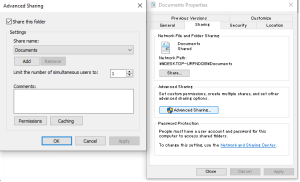
- Find Window's IP address
From CMD (command prompt), type: ipconfig
Note: Win PC's ipv4 addressAccess from Mac
Command K (Connect to server), type:
smb://ipaddressofwindows
e.g.,
smb://192.168.10.110
Input: Win's user name & password
ACCESS MAC'S FILES FROM WIN
(tried successfully on 2024.03.08)
Setup on Mac
Command Space (Go to): System Preferences > Sharing > File Sharing > Options > Share files and folders using SMB
Apple menu > System Preferences > Network > Status > IP Address
Access from Win
Windows R (Run), type: \\ipaddress
Input: Mac's user name & password
Personal Problems with Mac
- No USB A (e.g., USB 3) port.
Many peripherals at home are using USB A (e.g., USB 3), e.g., mouse, portable HDD.
Need to have converter/adapter USB Type-C to USB3.1 Standard-A メス (female), or to use Bluetooth devices (need to recharge etc). - Different HDD partition type/format.
Had problem with sharing data/hard-disk between Mac & Win.- Windows format data can be read from Mac, but the data cannot be changed.
Case: HDD was NTFS format. - Mac's format data (e.g., HDD formatted using Mac) cannot read from Windows, even though using compromised format type ExFAT.
Case:
One external/portable HDD formatted into 2 types of partition:
– Mac: Mac OS Extended (Journaled)
– Win: ExFAT
This HDD cannot even be recognized/detected when plugged into Win's USB port.How to check:
Cmd Spacebar: Disk Utility
Found: ___ Portable HDD MediaSolution:
– Data transfer through WiFi (peer to peer) or through Cloud
- Windows format data can be read from Mac, but the data cannot be changed.
- Unrecognized/unsupported format data, need to use special (and more expensive) accessories.
Mac format data is not readable via common PC peripherals, e.g., USB to TV adapter/converter. - Need to re-learn shortcuts, some common functionality shortcuts on Mac are ridiculous (need to press 4 keys!). Need to re-learn basic applications (Office related).
- Need to re-learn Mac keyboard keys:
- inexistent keys: Del, Menu (equivalent with right-click on Windows)
- new/confusing keys:
- Command (equivalent with Windows' Control key)
- Control (but different with Window's Control key –> not very intuitive)
- Option (but also called Alt key)
- symbolized keys, especially without written name on keyboard: Tab, Shift, Capslock
⌃⌘Fn⌥⇧⇪⇥
Interesting but not yet read links
Topic: heavy user Windows switching to Mac
https://www.reddit.com/r/mac/comments/ty8q55/heavy_windows_user_looking_to_get_a_macbook/
https://www.reddit.com/r/mac/comments/139cdaq/how_does_it_feel_like_for_long_term_windows_user/
https://www.reddit.com/r/apple/comments/ql8hpb/any_life_long_windows_users_and_powerusers/
https://www.reddit.com/r/mac/comments/14pgonm/users_that_switched_from_windows_to_mac/
https://www.reddit.com/r/MacOS/comments/q4vxvh/lifetime_windows_user_switched_to_macbook_m1_i/
https://community.oneplus.com/thread/1543588
https://www.quora.com/How-difficult-is-it-for-an-experienced-Windows-user-to-switch-to-macOS-What-are-some-reasons-why-someone-would-want-to-make-the-switch
https://neirad.org/10941/breaking-news/a-lifelong-windows-user-switches-to-the-macbook-universe/
https://fstoppers.com/gear/im-switching-mac-after-lifetime-windows-603755
https://www.wired.com/story/rant-switching-from-mac-to-windows/
https://www.reddit.com/r/pcmasterrace/comments/zal278/mac_keyboard_shortcuts_are_aggravating/